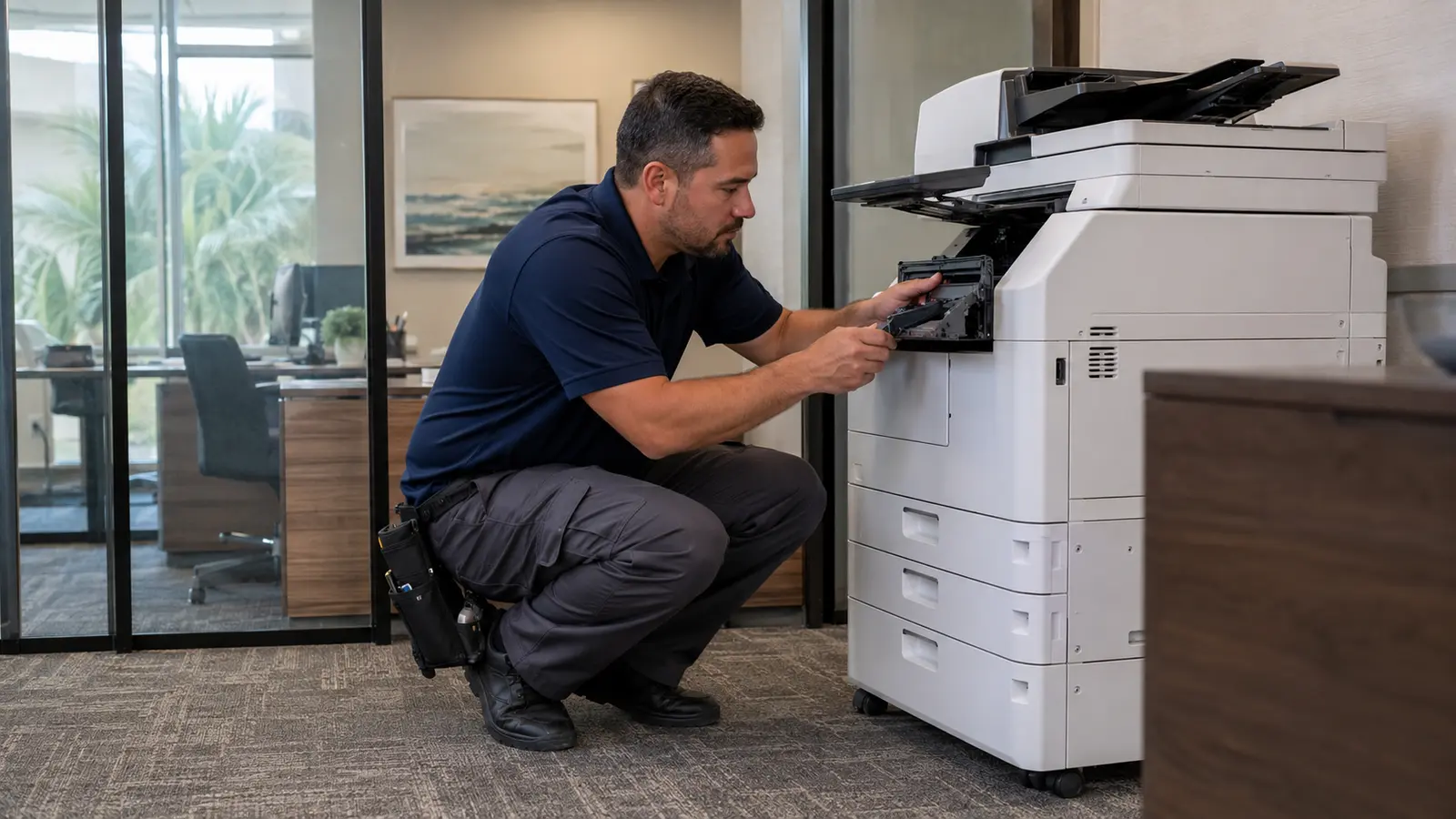
A copier can arrive on schedule and still leave a new office unable to work. The missing piece might be a network connection, a scan destination or simply someone authorized to approve the setup. Our copier installation checklist starts before delivery and ends with an employee completing a real task—not with a machine switched on.
Start with the first working day, not the model number
Write down what must work when the office opens. A property management team might need lease packets, two-sided copies and scans sent to a shared folder. An accounting practice might need letter and legal paper, separate scan destinations and a way to keep client documents out of a common output tray. Those are installation requirements, not details to discover after the delivery team leaves.
Give us a few nonconfidential sample files, the number of users and the office address. Identify the person who can approve the final configuration. Our Kyocera copier options are a starting point; the setup should follow your documents, paper sizes and work routines.
Before delivery: check the whole route into the office
A clear space beside a wall does not prove that a copier can reach it. Check the loading area, doorways, turns, elevator access and any building delivery requirements. For a Broward office tower or a Palm Beach professional suite, the building manager may need to coordinate access separately from the tenant.
Share photographs of the intended location and access route when helpful. Ask the installer to confirm the selected machine’s operating clearances and electrical requirements. Leave room to open trays, reach service panels and collect documents without blocking a walkway. Do not assume an existing extension cord or an outlet shared with other equipment is appropriate.
Resolve these questions before agreeing on an arrival window. Delivery access, copier placement and network readiness are three separate checkpoints; completing one does not complete the others.
Give the IT provider a specific handoff
The most useful handoff is a short responsibility sheet. It identifies who prepares the network, who configures the device and who confirms that users can reach it. “Our IT person will handle it” leaves too much open unless that person has accepted the task and the date.
| Confirm in advance | Person to involve |
|---|---|
| Active network connection and approved device addressing | Your network administrator or IT provider |
| Computers, operating systems and print deployment method | The person responsible for employee workstations |
| Approved scan destinations and account permissions | IT and the department receiving the documents |
| Copier settings, accessories and user orientation | Your equipment provider and office contact |
Share requirements through an agreed secure channel. Do not put administrator passwords in a quote request or a general email. An authorized IT contact should handle credentials and permissions during configuration.
For businesses comparing equipment and installation together, our sister company STAT Business Systems explains its copier leasing and setup support. Gold Coast Business Machines and STAT operate under the All Florida Technologies umbrella. Confirm the scope of network work, training and support in the specific proposal rather than assuming every task is included.
On installation day, run the jobs employees will run
A built-in test page confirms much less than an employee printing a normal document. Ask someone from each relevant department to use the approved print queue and scan destination. Keep the tests nonconfidential while checking page order, legibility, orientation and the final file location.
- Print a two-sided document from an employee’s computer, using the intended paper tray.
- Run the paper sizes and finishing options included in the order.
- Scan a representative stack and check that every page reaches the correct destination.
- Confirm that the right users can access the workflow and that unrelated users cannot.
- Record any unfinished item with a named owner and follow-up date.
For offices that depend on scanning, our guide to Kyocera scan workflows helps separate the desired result from the settings needed to achieve it. Availability of individual features depends on the equipment and configuration.
Leave the office with a usable support handoff
Have the team practice loading paper, choosing the correct tray, selecting two-sided output and finding its scan destination. Keep the support number and equipment identification where employees can find them. Assign one person to coordinate supplies and another backup contact for absences.
A few days into normal use, review what is still slowing people down. An awkward default, an unclear queue name or an inconvenient scan destination may need attention even when the machine itself works correctly. Separate those adjustments from faults requiring a copier service visit.
Opening or expanding an office in Broward, Miami-Dade or Palm Beach? Send us your location, opening date and document requirements. We can review the equipment and installation plan without asking you to guess which model your business needs.
New-office copier setup questions
Should our IT provider be available during installation?
Yes, when the setup involves network printing, scan destinations or controlled access. Arrange a contact and an availability window in advance, and confirm which tasks the equipment provider will perform.
What should we send with a new-office copier request?
Send the address, target opening date, number of users, document types, paper sizes and scanning needs. Include building-access details when known, but do not send passwords or confidential customer files.
Does delivery automatically include every setup task?
No. Ask the proposal to identify delivery, placement, network coordination, configuration, training and follow-up separately. The agreed scope should explain who handles work outside the equipment installation.