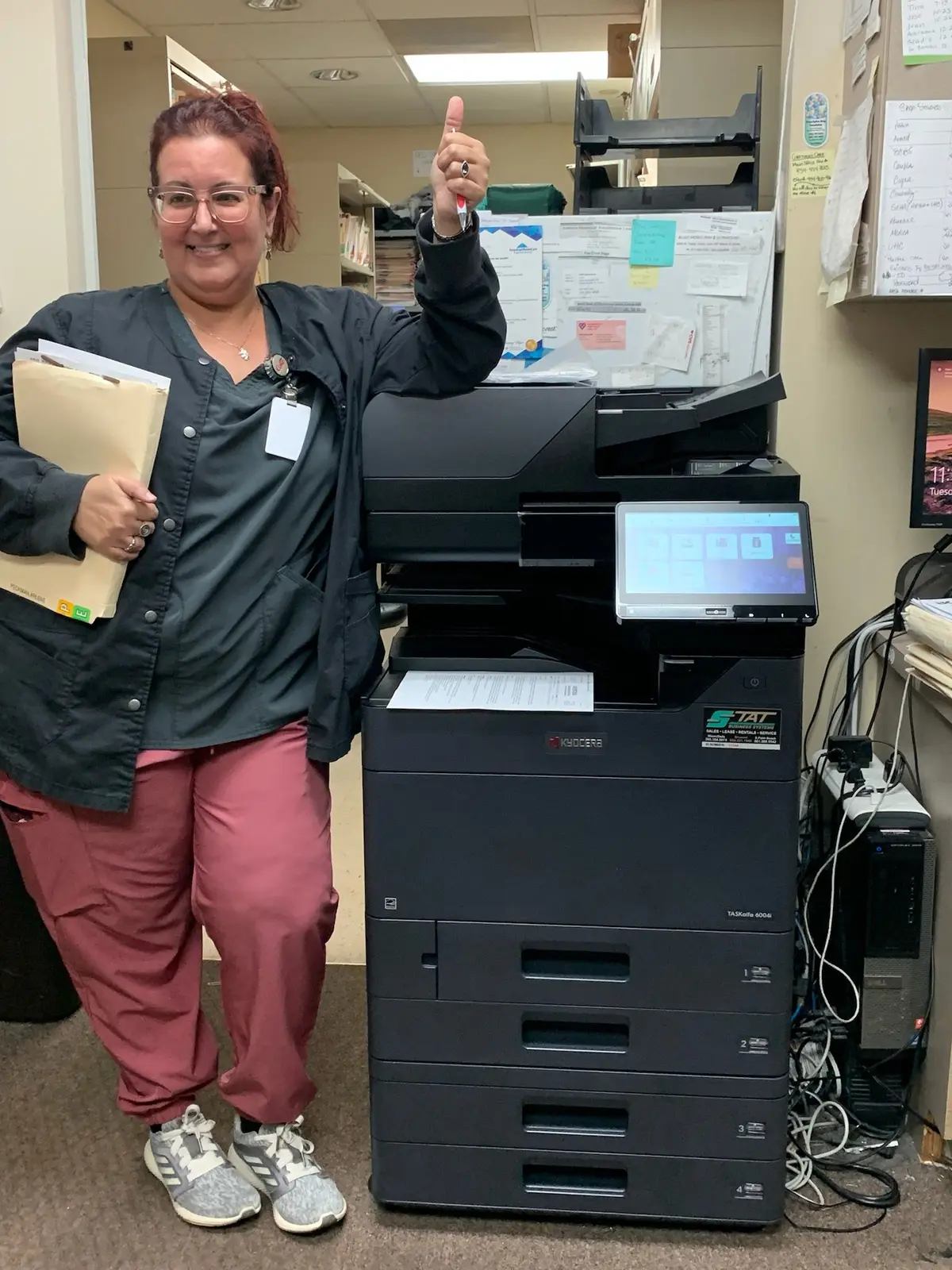
A modern Kyocera multifunction copier can become a reliable document-capture station, but productive scanning depends on thoughtful destinations, file settings, security and employee shortcuts. The most valuable workflow is the one employees can repeat correctly every time.
01
Begin with the destination and the next person in the process
Scanning is not complete when paper becomes a PDF. It is complete when the document reaches the correct system, can be identified and is available to the next authorized person. Map a few common document paths from beginning to end. A signed agreement may need to reach a client folder, a medical intake form may belong in an approved application, and an invoice may need to enter an accounting queue. Each path has different naming, security and retention requirements.
Avoid creating a button for every employee request. Group destinations by business process and assign ownership. If a destination changes, someone should know who approves and updates it. A concise home screen with clearly labeled workflows is easier to support than an address book filled with duplicate names, former employees and unexplained test entries.
- Where the original begins and who prepares it
- Approved destination and access permissions
- Required filename, document type and resolution
- Who checks quality after capture
- How the next employee knows the file is ready
02
Match scan-to-email, folders and cloud tools to the job
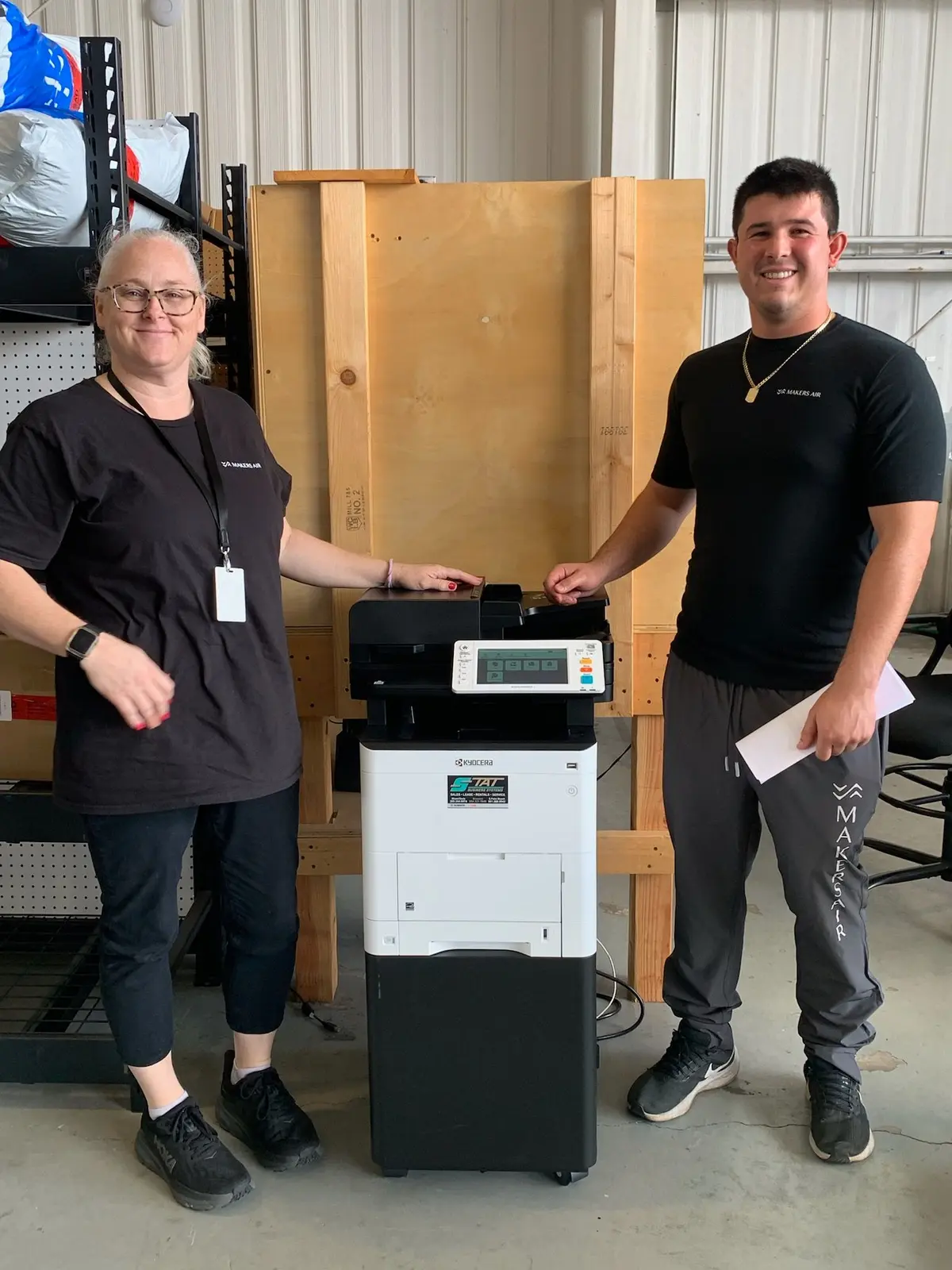
Scan-to-email is familiar and convenient for short documents, but email size limits and sensitive information can make it a poor archive. Scan-to-folder can place files directly into a shared network location, provided permissions, naming and backup are managed correctly. Cloud-connected workflows may reduce steps for teams already working in an approved document platform. The copier should support the organization’s information policy rather than becoming a shadow filing system.
Technology changes can interrupt otherwise dependable scanning. Email providers update authentication rules, server addresses change and permissions are tightened. Keep a record of how each destination is configured without exposing passwords. Involve the organization’s IT provider when network, identity or cloud settings are required. Copier support and IT support should know where their responsibilities meet before a scan failure becomes urgent.
| Destination | Good fit | Watch for |
|---|---|---|
| Short documents sent to known recipients | Attachment limits, wrong recipients, mailbox retention | |
| Shared folder | Department files and repeatable archives | Permissions, naming and network availability |
| USB | Approved isolated use cases | Device policy, loss and uncontrolled copies |
| Cloud workflow | Teams already using a managed platform | Licensing, authentication and governance |
| Line-of-business system | Structured records with defined ownership | Integration design and vendor support |
03
Use the lowest complexity that preserves the information
A 600 dpi full-color scan may look impressive, but it can create very large files and slow transmission. Text documents often remain clear at a lower resolution, while photographs, fine marks or faded originals may require more detail. Build presets around recognizable document types: ordinary text, color forms, searchable records and high-detail originals. Employees should not have to understand every imaging term to produce a usable file.
Searchable PDF can turn scanned text into information employees can locate, copy and organize, though optical character recognition should be checked when accuracy is critical. Compression reduces file size but can affect fine detail. Blank-page removal helps with mixed one- and two-sided originals. Test each preset using the worst realistic document—not only a clean laser-printed sample—before making it available to the whole office.
04
Design one-touch buttons around business language
A shortcut titled SMB-04 means something to a technician and nothing to a new receptionist. Use labels such as Signed Contracts, Accounting Invoices or HR Intake, provided they do not expose confidential details. If a workflow sends directly to an external recipient, make the destination unmistakable and consider requiring confirmation. Color, icons and button position can help users distinguish common internal routes from less frequent external actions.
Keep the number of visible choices under control. A pilot group can identify confusing labels and forgotten steps before full rollout. After launch, post a short instruction near the device and remove obsolete entries promptly. The objective is repeatability: the same type of document should arrive in the same place with the same useful settings regardless of which trained employee scans it.
- Name buttons for the business process
- Preselect file type, resolution and color mode
- Limit editing where consistency is important
- Require confirmation for external destinations
- Review address books when staff or systems change
05
Treat the copier as an endpoint on the business network
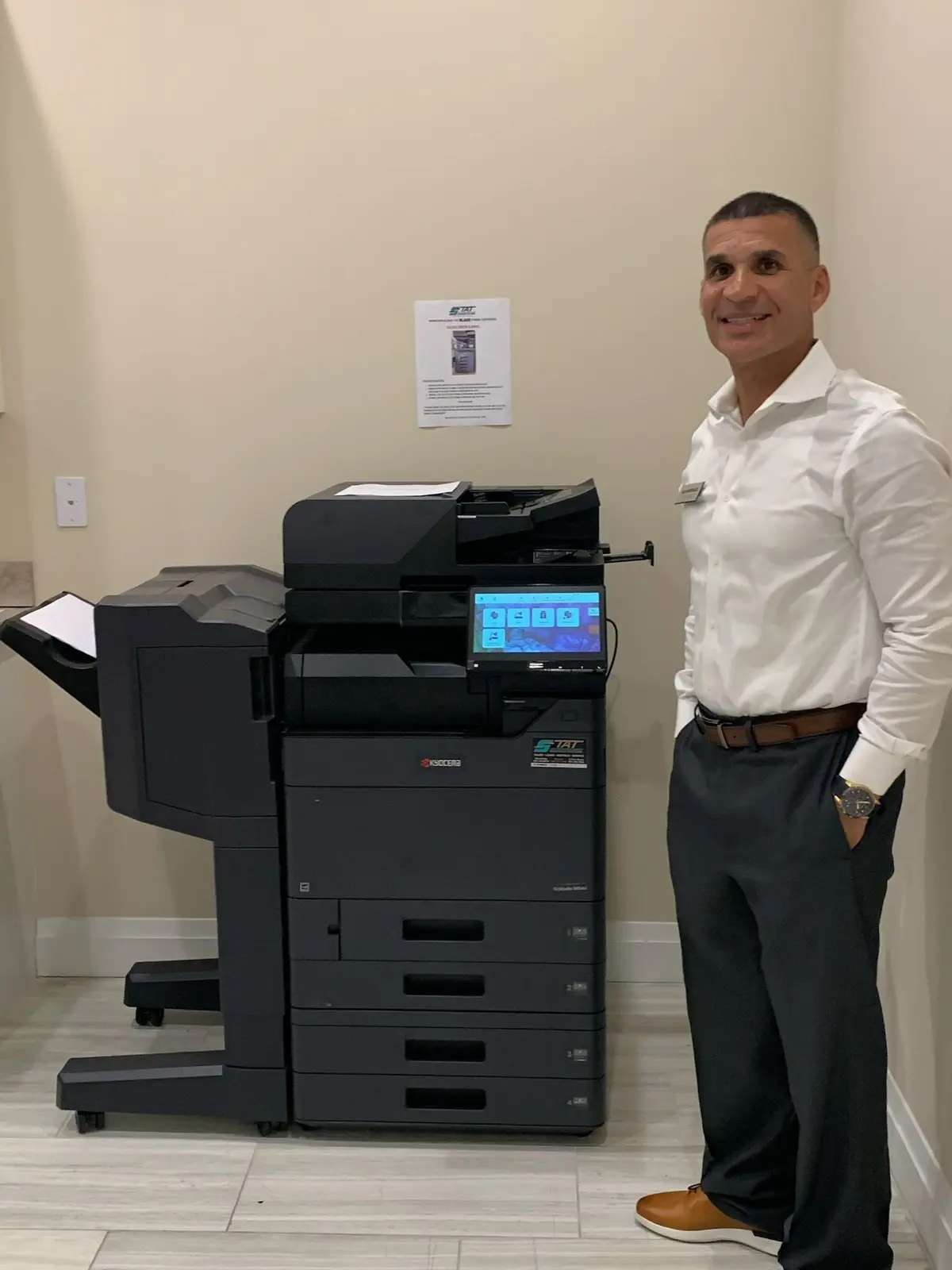
Multifunction devices communicate with computers, servers and cloud services, and they may process confidential information. Use unique administrator credentials, current supported firmware, encrypted protocols when available and role-appropriate address books. Disable functions the organization does not permit. If user authentication is required, choose a method that employees can follow without sharing credentials or bypassing the process.
Scanning features alone do not make an organization compliant with healthcare, legal, financial or privacy requirements. Security depends on the complete environment: device configuration, network controls, destination permissions, retention, training and incident procedures. Include the copier in technology inventories and periodic reviews instead of leaving it outside normal IT governance.
06
Pilot, measure and improve the workflows employees use most
Choose two or three high-frequency scan tasks for the first rollout. Time the current process, configure a proposed shortcut and test with real employees. Confirm that the resulting file is readable, named appropriately and delivered to the right permissions. A workflow that saves thirty seconds but causes frequent filing errors is not an improvement. Collect questions during the first week and adjust labels or presets before expanding.
Gold Coast Copiers configures Kyocera multifunction systems for offices across Broward, Miami-Dade and Palm Beach. We can coordinate with your IT contact on supported scan destinations, help simplify the device interface and train users on the final process. The best Kyocera scan workflow is not the most elaborate integration; it is the secure, understandable path that removes unnecessary steps from a document your team handles every day.
FAQ
Frequently asked questions
Can a Kyocera copier scan directly to a shared folder?+
Many Kyocera MFPs support scan-to-folder workflows. Successful setup depends on the device model, network path, credentials, permissions and the organization’s current security policies.
What resolution should we use for office scanning?+
Use the lowest setting that preserves required detail. Ordinary text often needs less resolution than photographs, drawings or faded originals. Test representative documents before standardizing presets.
Can scanned PDFs be searchable?+
Searchable PDF capability is available on many configurations, sometimes as an option. OCR improves retrieval and reuse, but critical information should still be verified against the original.